Translate

Saturday, October 24, 2020

Oracle Database Redaction and Masking

Oracle Database Redaction and Masking.


This video will make understanding the requirement between Database Redaction and Masking implementation. Redaction is being configured to protect the data accessing by the user within the database. But data masking is configured to protect the data when production data is being moved outside the production environment e.g. non-production environment.


Monday, June 12, 2017

Installation of Microsoft SQL Server 2017 on RHEL 7.3 along with log shipping (DR Setup) using nfs server.

Document for Installation of Microsoft SQL Server 2017
Along with DC DR setup configuration on RHEL Platform.

Documentation on:
Microsoft SQL Server installation and DC DR Set configuration.
Platform used: RHEL 7.3, Windows Client.
For file sharing: NFS mount has been used.
Prepared By: Tapas Kumar Karmakar.
                        Oracle Consultant.

Tested in my VMware Workstation setup.

Table of Contents

Purpose of the DOCUMENT

As we all aware that Microsoft has announced now SQL Server can be installed and operated on Linux platform too.
So now as a DBA we all must know how to Install Microsoft SQL server 2017 on RHEL platform. 
Even this documentation contains information for configuration of log shipping in RHEL platform.
Some of the information related to prerequisites has been gathered from Microsoft website.

Scope of the DOCUMENT

The Document and the operational processes contained herein can only be used to accomplish the suggested activities based on the policies.

Workflow Navigation


For installation of Microsoft SQL Server 2017.
Basic requirements for Installation used for testing and setup are viz.
        A     RHEL 7.3
        a.      DC Server IP: 192.168.209.251 hostname sqlrheldc01.
        b.      DR Server IP: 192.168.209.252 hostname sqlrheldr01.


        A.     Users and Group required in server. 
               One user with mssql and group as mssql server required in server


       B.      MSSQL user need to be added to sudo group for performing admin privileges.


        D.      Services need to be configured in server are.      

                 a.    nfs
                 b.      nfs-server
                 c.rpcbind

        E.      Yum server required.


      F.      YUM REPO CREATION.


         G.      NFS File mount 


Microsoft SQL Server installation Steps


1.      Pre-Requisites:(These information’s are taken from Microsoft website) 


2.      Package Details.(These information’s are taken from Microsoft website) 


3.      Supported client tools(These information’s are taken from Microsoft website) 


4.      RPM Installation.


For installation of SQL Server 2017 on Linux following RPM are required to be installed on server.

   b.       After mssql-server package installation Sql-Server Setup need to be performed.


c. Mssql-Server-tools rpm installation.


      d.       After installing mssql-serve-tools, mssql-server Service needs to be restarted.


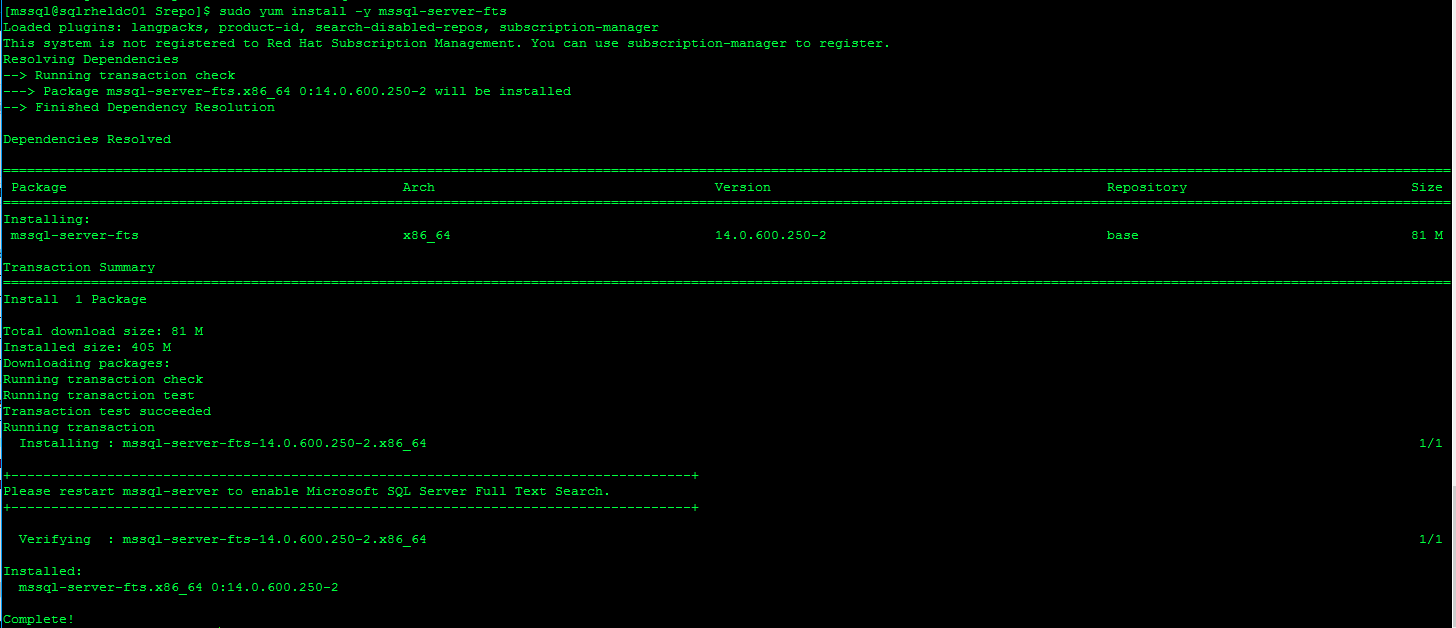
e.       Mssql-Server-fts installation rpm installation.


f.       Mssql-Server msodbcsql rpm installation


g.       Mssql-tools rpm installation


                               h.       Omi rpm installation


i.       Powershell rpm install


j. PSRP rpm installation


k.      Package Microsoft rpm installation


1.      Database connection for Client


After successful installation of rpm packages on the servers.
Next step is to check the databases of DC and DR setup from client SSMS from any windows server/client.

a.       Screen shot for sql server connection from client to DC server.


b. Screen shot for sql server connection from client to DR server.


1.      Create new DB in DC Server.

Created new database named as PRDB in DR Database.

a.       Right click on Database -> click on New Database


b.       Enter the details for new database and then click on ok.


c.     Screen shot for new database created.


1.      Activity needs to be performed for setting up DR database.

a.       Step 1 is to enable log shipping for DC database.
For this right click on newly created database -> click on database properties.


b.       Select Transaction log shipping and click on ok.


c.       Click on enable this as primary database in a log shipping configuration. And click on backup settings.


d.      Now enter the details for backup of log files, click on ok


e.       Click on use a monitor server instance.


f.      Click on settings -> connect -> enter the database details.


g.      Click on ok. In this stage log shipping process started.


h.    Click on ok. In this stage log shipping process started.

Now click on close.

i.    Now steps to perform standby database for DR setup.
Right click on DB Properties -> click on transaction log shipping -> click on add -> click on connect


j.     Enter the details for DR server and enter the details.


k.     Now after connecting the DR server this screen will appear.


l.       Select copy files tab and enter the details.


m.       Select restore transaction log tab and select Standby mode and disconnect users button.


n.  Click on ok.


o.     Standby database set will start.


p.    Screenshot for DR set up creation. Click on close and proceed.


8.      Check connection for DC and DR database through client.

a.       Connect to DC and DR database.


9.      Check connection for DC and DR database through client.


Friday, April 4, 2014

Very slow insertion of record in Oracle database.

Very slow insertion of record in Oracle database


Hi readers I am sharing this knowledge to all you to make you understand how to resolve issue related to very slow insertion of record in a database.

Platform:
OS: Windows Server 2003 32 bits.
Oracle Version: 10.2.0.1 Enterprise Edition.

Issue Observed:

Its an issue related to slow insertion of record and slow movement of messages in IBM MQ server from MQ local queue only connected to an oracle database server. As per observation found, that during morning insertion of messages are fine, but as the time passes and peak how started, the number of messages gets started increasing and movement of messages / insertion of record getting very slow.

One important think also observed that the table where the data gets inserted, in this table lots of DML operation related to (insertion and deletion) are going on in a high level.

Analysis for Issue:

1) Found fragmentation in table.

2) Checked Initran values for these tables and its indexes set to 1.
3) Observed one query that is used for fetching the records from these tables having Full table scan.
4) As per application team information it has been found that only 750 approx messages are being inserted
to table during peak hour when volume of messages goes beyond 50,000 in one hour, and there is a huge queue of messages started in local queue of MQ.

Solution.

1) Set the Initran value for these table to 50.
2) Create one index for the query.
     Please see the explain plan for the same query before and after index creation,and number of execution for the same query is too high.
Observation after Changes.

1) More that 120 queries Full table scan has been resolved by creating one index.
2) As per application team information now 12000 approx messages are being inserted in a hour.
3) And we have achieved to transferred more than 90000 message in a day without any issue.
4) Application now doses't observed any pile up or MQ messages queue or stack from local queue of MQ.

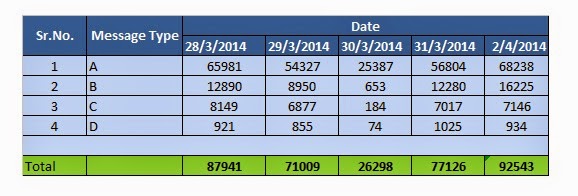
Statistics of record inserted to the table without any slowness or pile up in MQ local queue.


Conclusion:

Finally we found that in morning as there is very less number of record present in table, so query was fetcing the record without delay, now during peak hour number of count increases in table and also number of record to be inserted to table also increasing simultaneously. So that is the reason that after creating the index and after increasing the Iinitran value the issue gets resolved.